Compatible Adapters
Tested USB-C and Lightning to 3.5mm audio adapters
What You Need
IFE Bridge requires a USB-C or Lightning to 3.5mm audio adapter to connect to the IFE system's headphone jack. Below are adapters we've tested and confirmed working.
Status Badges:
- ⭐ Recommended No issues or limitations whatsoever
- ✓ Works Functions correctly but has limitations (mono, reliability issues, etc.)
- ✗ Does Not Work Not compatible with IFE Bridge
Tested Adapters
Note: IFE Bridge has no commercial relationship with any of the vendors listed below. This table is compiled from real-world testing and user reports to help you choose compatible adapters.
| Image | Product Name | Status | Features & Capabilities | Link | Additional Notes |
|---|---|---|---|---|---|
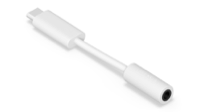
Sonos USB-C Line-in Adapter (SD-01)
|
Sonos USB-C Line-in Adapter (SD-01) | ⭐ Recommended |
|
Sonos Store | Top choice for IFE Bridge - This adapter provides the highest quality audio with no issues or limitations. Natively stereo with full channel separation for the best listening experience on flights. Tested and working well with IFE Bridge. |
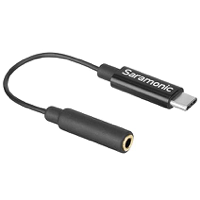
Saramonic SR-C2003
|
Saramonic SR-C2003 | ⭐ Recommended |
|
Amazon | Top choice for IFE Bridge - This adapter provides the highest quality audio with no issues or limitations. Natively stereo with full channel separation for the best listening experience on flights. Tested and working well with IFE Bridge. |
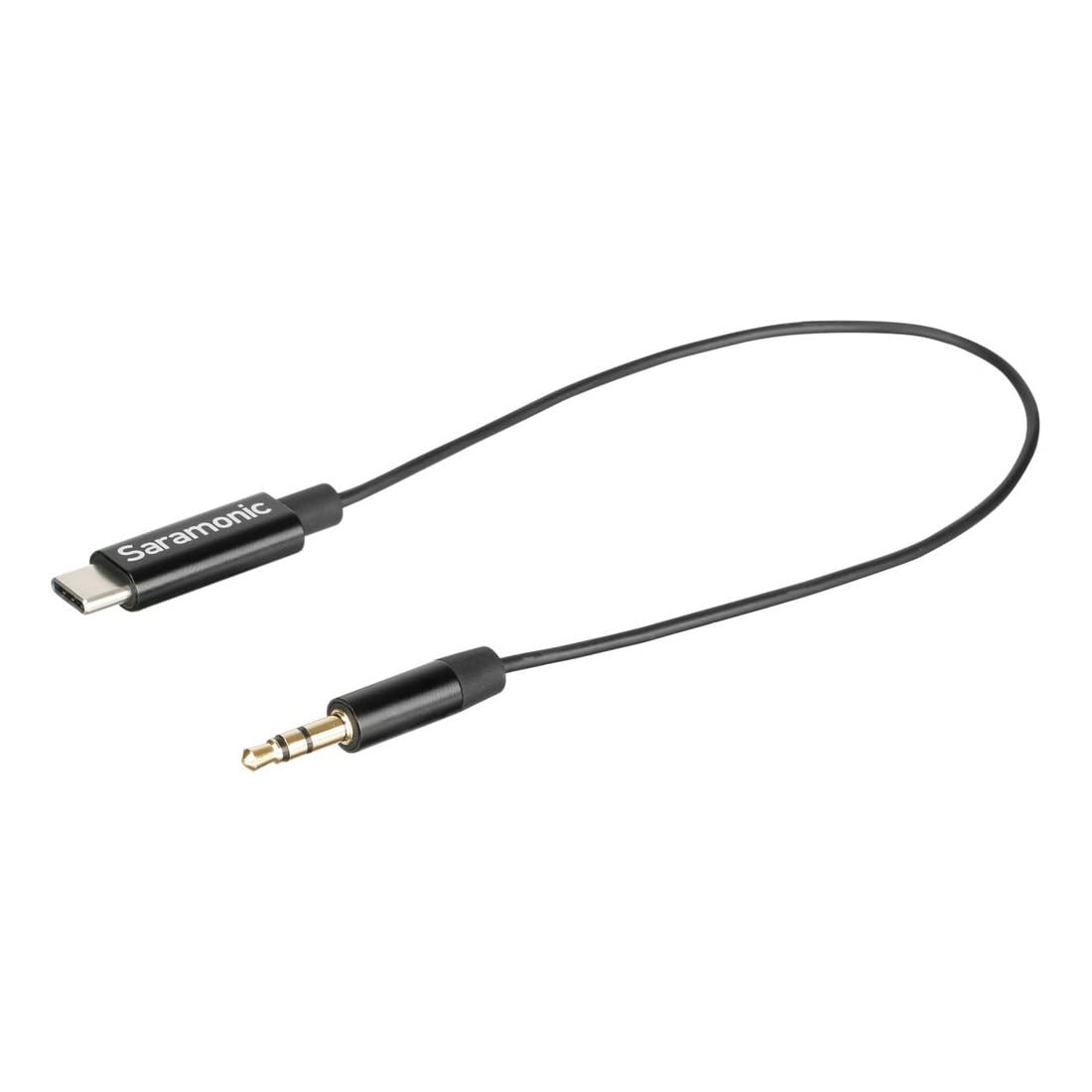
Saramonic SR-C2001
|
Saramonic SR-C2001 | ⭐ Recommended |
|
Amazon | Top choice for IFE Bridge - This adapter provides the highest quality audio with no issues or limitations. Natively stereo with full channel separation for the best listening experience on flights. Tested and working well with IFE Bridge. |
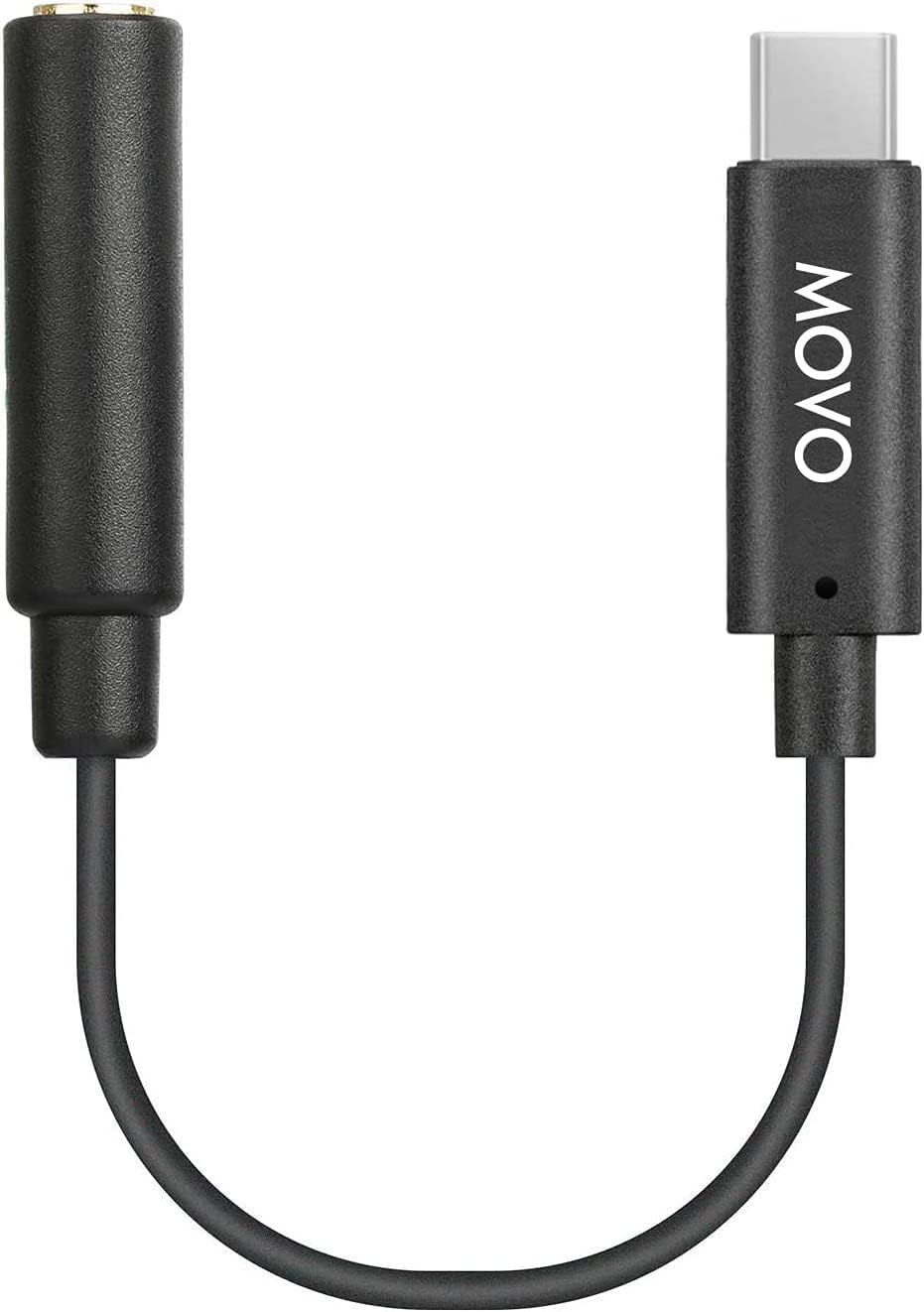
Movo UCMA-1
|
Movo UCMA-1 | ⭐ Recommended |
|
Amazon | Top choice for IFE Bridge - This adapter provides the highest quality audio with no issues or limitations. Natively stereo with full channel separation for the best listening experience on flights. Tested and working well with IFE Bridge. Compact 5.5-inch design optimized for professional microphones and audio devices. |
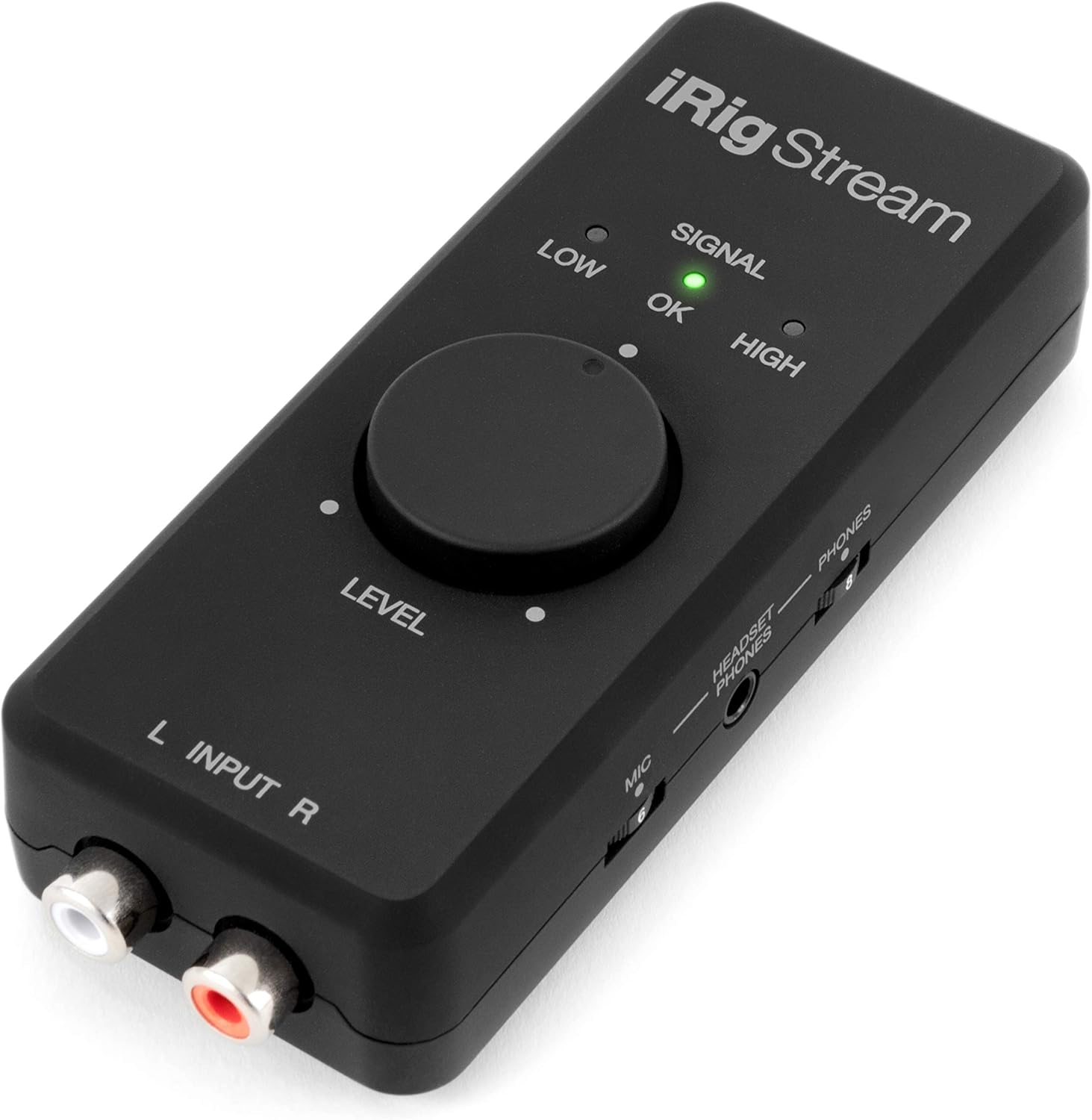
IK Multimedia iRig Stream
|
IK Multimedia iRig Stream | ⭐ Recommended |
|
Amazon | Professional audio interface - Full-featured stereo audio interface with no issues or limitations. Requires RCA to 3.5mm cable to connect to IFE headphone jack. Probably overkill for IFE use, but great if you already have one. Includes USB-C, Lightning, and USB cables for device compatibility. Premium 24-bit/48kHz audio quality. Tested and working well with IFE Bridge. |
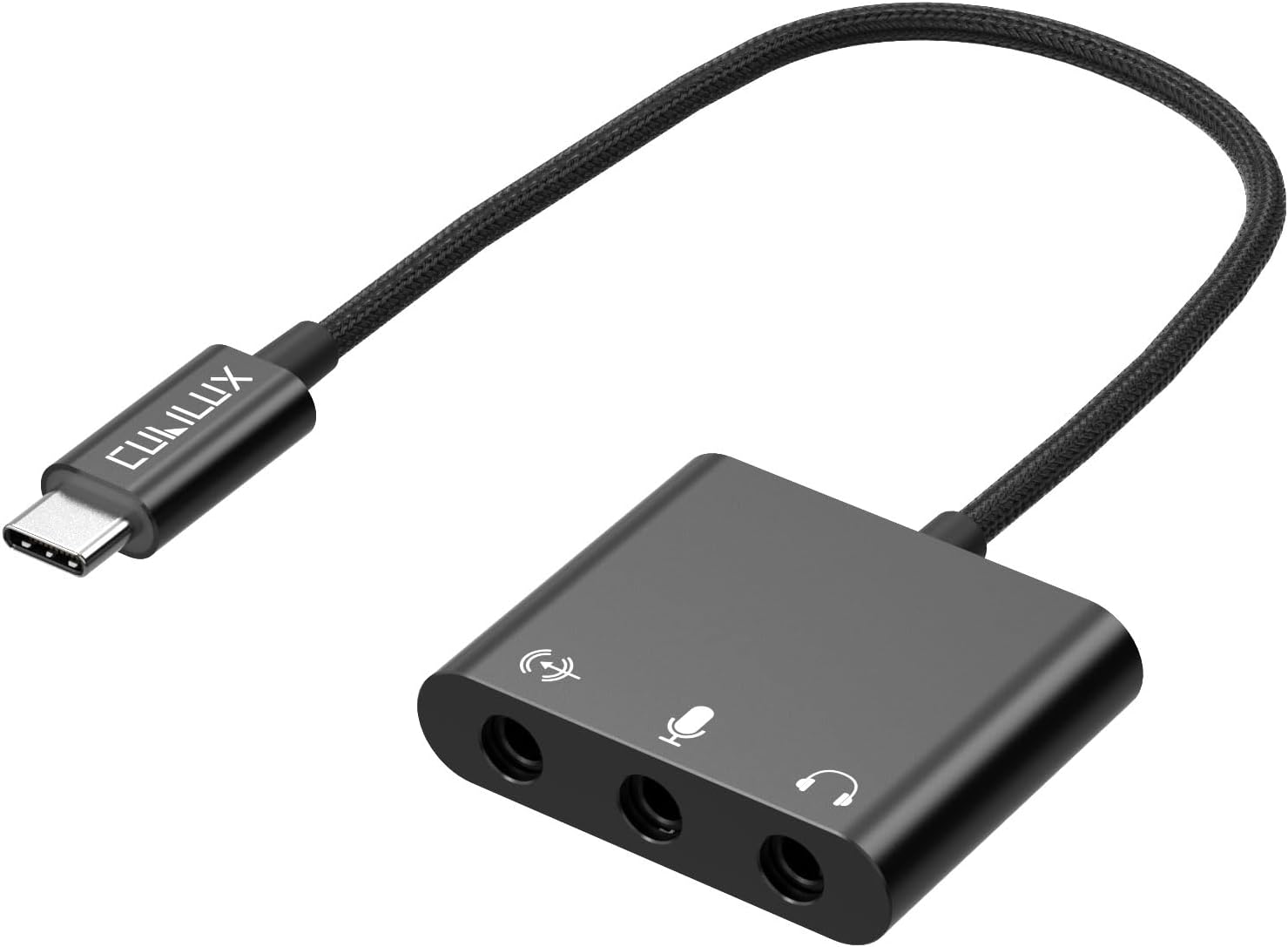
Cubilux HLMS-C4
|
Cubilux HLMS-C4 | ⭐ Recommended |
|
Amazon | Top choice for IFE Bridge - This adapter provides the highest quality audio with no issues or limitations. Features separate dedicated jacks for microphone, headphone, and headset. Natively stereo with full channel separation for the best listening experience on flights. Tested and working well with IFE Bridge. |
mic
Biaze USB C Sound Card
|
Biaze USB C Sound Card | ✓ Works |
|
Amazon AU |
Enumerates as "AB13X USB Audio" when connected.
⚠️ Limitations:
|
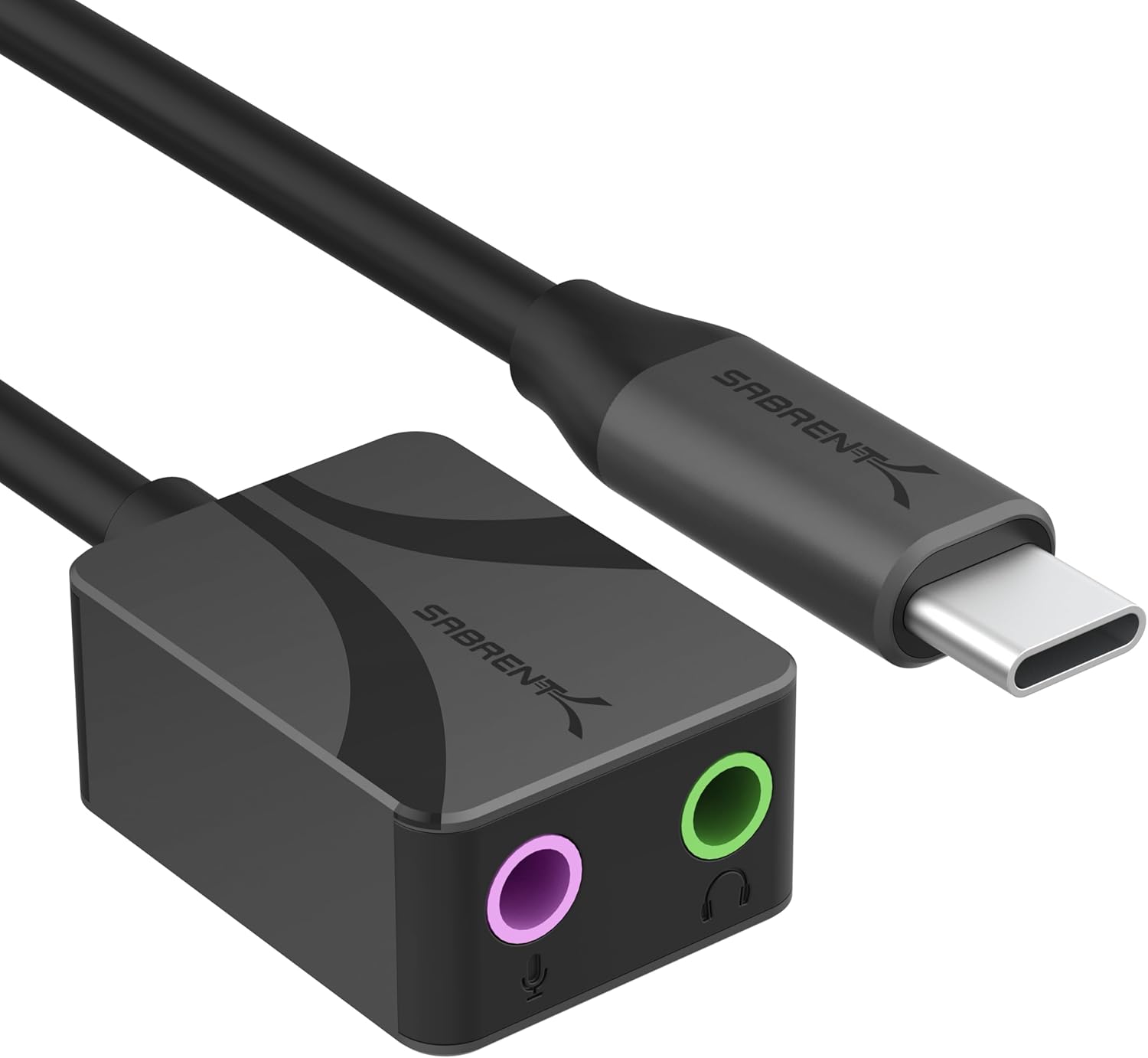
mic
Sabrent AU-UCMA
|
Sabrent AU-UCMA | ✓ Works |
|
Amazon |
USB Type-C audio adapter with dedicated microphone input (pink jack). Aluminum construction for durability and heat dissipation.
⚠️ Limitations:
|
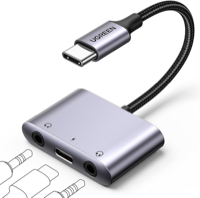
headset_mic
UGREEN CM722
P/N 25838
|
UGREEN CM722 | ✓ Works |
|
Amazon AU |
Enumerates as "UGREEN CM722 USB Audio" when connected.
⚠️ Limitations:
Bonus: Allows simultaneous charging of your phone while listening - perfect for long flights! |
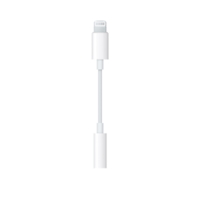
Apple USB-C to 3.5 mm Headphone Jack Adapter
Model A2049, P/N MW2Q3FE/A
|
Apple USB-C to 3.5 mm Headphone Jack Adapter | ✗ Does Not Work |
|
Apple Store |
Not compatible - This adapter is designed for headphone output only and does not support audio input (microphone).
For IFE Bridge, you need an adapter with microphone input support. See the tested adapters above for compatible options. |
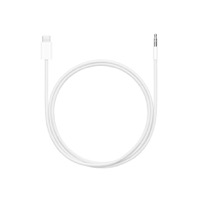
Apple USB-C to 3.5 mm Audio Cable
Model A3299, P/N MDV84FE/A
|
Apple USB-C to 3.5 mm Audio Cable | ✗ Does Not Work |
|
Apple Store |
Not compatible - This cable is designed for audio output only and does not support audio input (microphone).
Similar to the adapter model A2049 above, this cable lacks microphone input support required for IFE Bridge. |
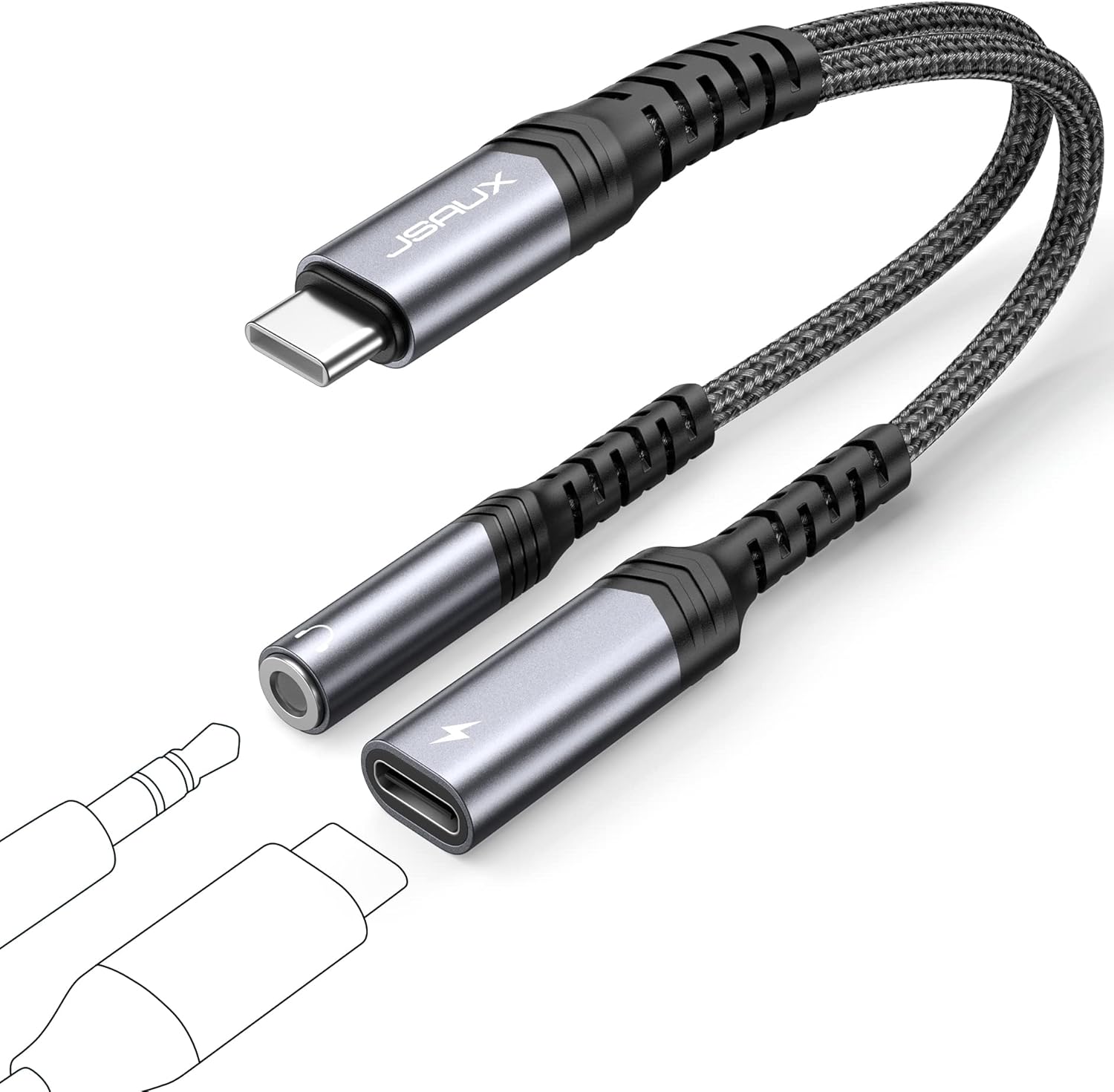
JSAUX USB-C to 3.5mm Headphone and Charger Adapter
Model CM0029
|
JSAUX USB-C to 3.5mm Headphone and Charger Adapter | ✗ Does Not Work |
|
Amazon AU | Not compatible - Despite having both a 3.5mm jack and USB-C charging port, this adapter is designed for audio output only. It does not support audio input (microphone), which is required for IFE Bridge. |
Tested Accessories
Note: These accessories are optional and designed to complement the tested adapters above. They enhance functionality but are not required for basic operation. These accessories alone are not sufficient—you must have a compatible USB audio adapter from the "Tested Adapters" section.
| Image | Product Name | Status | Features & Capabilities | Link | Additional Notes |
|---|---|---|---|---|---|
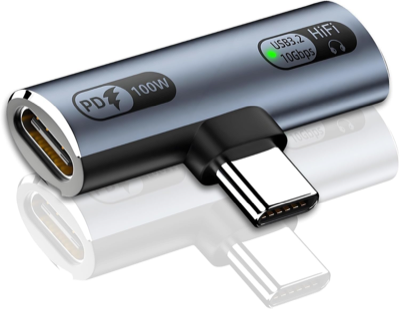
Mizi USB C Splitter 100W Fast Charging Adapter
|
Mizi USB C Splitter 100W Fast Charging Adapter | ✓ Works |
|
Amazon AU |
Allows you to charge your phone while using the audio adapter - perfect for long flights! Supports 100W fast charging for compatible devices while maintaining full audio functionality. Universal compatibility with iPhone 15/16, iPad, MacBook, Galaxy S24/S23, Pixel, and other USB-C devices.
Setup: Connect the splitter to your phone, plug your USB audio adapter into one port and your charging cable into the other port. |
Important Notes
Testing Before Your Flight
Always test your adapter before traveling. Connect it to any audio source (laptop, TV, etc.) and verify IFE Bridge shows "USB Input Connected" and you hear audio through your Bluetooth headphones.
Airplane Headphone Adapters
Some airlines use dual-prong or proprietary headphone jacks instead of standard 3.5mm. In these cases, you'll need an airplane headphone adapter (dual-prong to 3.5mm) in addition to your USB adapter.
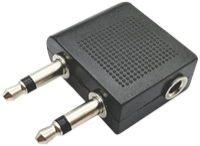
Understanding Audio Jacks: TRRS vs TRS


If your adapter has a combined headphone/mic jack (TRRS), you'll need a splitter cable that breaks it out into:
- One plug for microphone (usually pink or red)
- One plug for headphones (usually green)
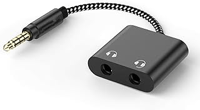

Examples of TRRS splitter cables
Check Your Adapter's Symbols
Most USB-C adapters are output only (for headphones). You need one that supports audio input (microphone). Check your adapter's symbols to see what it supports:
This adapter has a dedicated microphone input. Perfect for IFE Bridge!
This adapter has a combined headphone/mic jack (like iPhone earbuds).
This adapter is output only (speakers/headphones). It has no microphone input.
Lightning Devices: Need Lightning to USB Adapter
If you have an older iPhone with a Lightning port (iPhone 14 and earlier), you'll need a Lightning to USB adapter to connect USB audio adapters to your device.
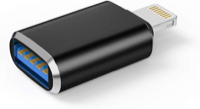
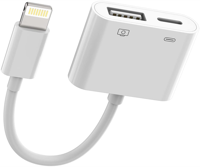
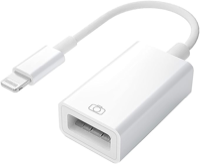
Look for "Lightning to USB Camera Adapter" or "Lightning to USB 3" adapters. These often have a camera symbol on them (as shown in the photos above). Chain it: IFE headphone jack → 3.5mm cable → USB audio adapter → Lightning to USB adapter → iPhone.
Important: The adapter must support data transfer, not just power. Power-only Lightning adapters (like some charging adapters) won't work. Look for camera adapters or USB 3 adapters that explicitly support data.
⚠️ Reliability Warning: Even adapters that claim to work with cameras can be finicky. Some may not work at all, while others can cause audio cutouts or distortion during use.
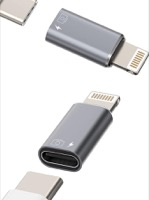
Example of an adapter that doesn't work reliably with IFE Bridge - causes intermittent audio issues even though it claims camera support.
Recommendation: Always test your specific Lightning to USB adapter thoroughly before your flight. If you experience audio issues, try a different adapter model or consider upgrading to a USB-C iPhone for more reliable compatibility.
Preventing Siri Interruptions
Some adapters may accidentally trigger Siri during use, interrupting your audio. For uninterrupted audio bridging, disable Siri features in iOS Settings.
⚠️ Why This Happens: iOS always gives priority to system features like Siri. Apps cannot programmatically disable Siri for security and privacy reasons.
settings_voice Disable "Hey Siri"
iOS 18 and later:
- Open Settings app
- Tap Apple Intelligence & Siri
- Tap Talk & Type Siri
- Turn OFF "Listen for" (or disable all triggers)
iOS 17 and earlier:
- Open Settings app
- Tap Siri & Search
- Turn OFF "Listen for Hey Siri"
power_settings_new Disable Button Activation
iOS 18 and later:
- Open Settings app
- Tap Apple Intelligence & Siri
- Tap Talk & Type Siri
- Turn OFF "Press Side Button" or "Press Action Button"
iOS 17 and earlier:
- Open Settings app
- Tap Siri & Search
- Turn OFF "Press Side Button for Siri"
💡 Ultimate Solution: For critical recordings where interruptions are unacceptable, enable Airplane Mode and Do Not Disturb. This disables all potential interruptions.
Help Us Build the Database
🎁 Tested a New Adapter? Get a Free App Coupon!
If you've tested an adapter that's not on our list, we'd love to hear about it! Submit your findings and get a coupon for the full App Store version as a thank you.
We need to know:
- Adapter brand and model
- Whether it worked (yes/no)
- Audio quality notes (mono/stereo, gain needed, etc.)
- Product link (manufacturer or vendor)
Coupons are awarded for adapters not yet in our database.
Ready to Try IFE Bridge?
Get an adapter, download the app, and enjoy wireless IFE audio on your next flight.

Free • TestFlight beta available